
A black screen on a Samsung Galaxy does not necessarily indicate a faulty display. In the majority of cases we encounter in the workshop, the problem is software-related or linked to a poorly calibrated sensor. Quickly distinguishing the origin avoids unnecessary screen replacement, which can cost several hundred euros on recent AMOLED models.
Ambient light sensor and false black screen on Galaxy
The ambient light sensor, located on the top edge of the display, automatically adjusts the backlighting. When it malfunctions, the screen may appear black when it is simply at the minimum brightness. This scenario is common after applying a poorly cut screen protector or a case that partially covers the sensor area.
To check, position yourself in a completely dark room. If you can see content displayed, the problem comes from the sensor or its obstruction. Remove any accessories covering the top part of the phone, then disable automatic brightness in the display settings to force a fixed level.
If automatic brightness was already active and the screen reacts when you wave your hand in front of the sensor, it is functioning. The fault lies elsewhere, probably on the software or power supply side.

Forced restart and Recovery mode on Samsung smartphone
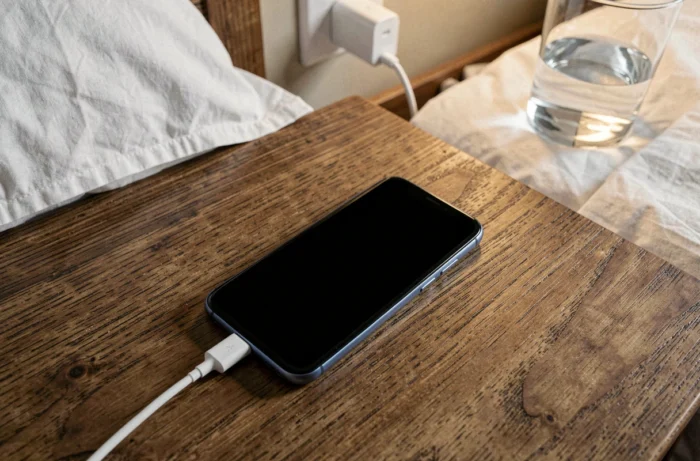
A forced restart remains the first action to try. Press and hold the Power and Volume Down buttons simultaneously for about twenty seconds. The phone should vibrate and display the Samsung logo. If nothing happens, first connect the original charger and wait at least fifteen minutes before trying again: a deeply discharged battery shows no signs of power for an abnormally long time.
When you search for what to do in case of a Samsung black screen, Recovery mode often comes up. To access it, hold Volume Up and Power simultaneously while the device is off. This mode allows for two useful operations:
- Wipe cache partition, which clears the system cache without touching personal data. We recommend this step first, as a corrupted cache after a One UI update regularly causes black screens on startup.
- Factory reset, which erases all data. Reserve this for cases where the wipe cache does not resolve anything and the phone loops on a black screen after the Samsung logo.
- Reboot system now, to restart the device normally after the chosen operation.
On some Galaxy S25 models, a documented One UI bug has caused black screens directly related to the software interface rather than a hardware failure. A fix was deployed via the July security patch. Checking the software version from Recovery mode (visible at the top of the screen) helps determine if your device is affected.
Black spots and internal damage on Samsung AMOLED display
An intact glass does not guarantee a functional screen. Samsung specifies in its support documents updated in July 2026 that round black spots or “ink” marks appearing inside the screen are generally due to repeated pressure or impact, even if the outer glass shows no visible cracks.
This type of AMOLED damage spreads over time. A small spot of a few millimeters can gradually cover a significant portion of the display. If you notice a black spot that is growing, screen repair is the only option. No software manipulation will change that.
Samsung warranty and reclassification as a manufacturing defect
A documented case in August 2026 on the Galaxy S25 Ultra illustrates a point we regularly observe in customer service. A user whose display defect (“black dot issue”) was denied under warranty ultimately received free coverage after escalation to Samsung support. The damage was reclassified as a manufacturing defect.
If your device has black spots without any signs of impact and customer service denies the warranty, request a reevaluation by a higher level of support. Document the gradual appearance of the defect with dated photos: this significantly strengthens your case.
Hardware versus software diagnosis: the checks that decide
Before heading to a repair center, a few quick tests can provide a reliable pre-diagnosis.
- Connect the phone to a PC via USB cable. If the computer detects the device (connection notification or appearance in the device manager), the motherboard is functioning and the problem is limited to the display.
- Call your number from another phone. If the Galaxy rings or vibrates, the system is running in the background and the failure is indeed confined to the screen or its connector.
- Check the charging connector. An oxidized or obstructed USB-C port prevents any power supply. Cleaning with dry air (no metal toothpicks) sometimes resolves a false diagnosis of a faulty motherboard.
In the absence of any reaction (no vibration, no USB detection, no charging LED), the problem goes beyond the screen. A component of the motherboard, the power controller, or the battery itself may be at fault.
On recent Galaxy models equipped with AMOLED displays, screen replacement often represents half the price of a new device. We recommend always performing these checks before approving a repair estimate. A black screen of software origin can be resolved at no cost, provided the correct cause has been identified beforehand.